

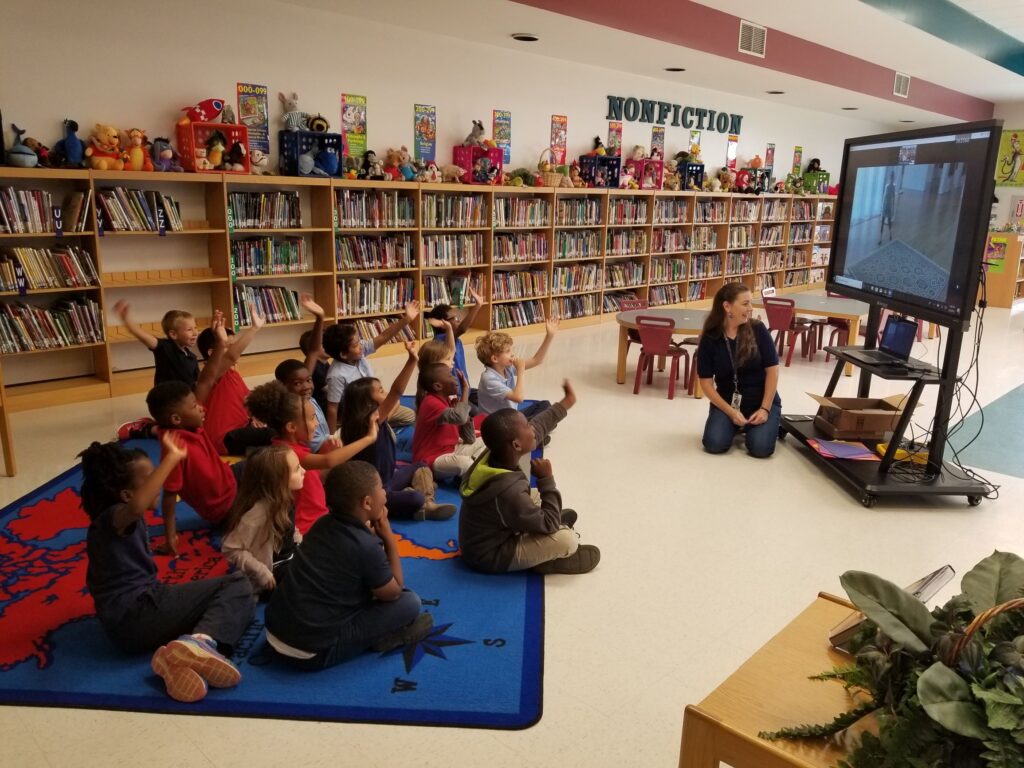
With this option, students engage with a museum educator through their teacher’s projection.
Technology needed for one projected connection Option for Kindergarten-12th grade classes:
- internet connection, test your internet speed here
- teacher laptop with camera
- projection system with speaker and microphone
- an external microphone is helpful, but not required
Technology needed for individual connections Option for 6th-12th grade:
Secondary teachers have the option for students to connect to the meeting on their individual devices. This is a good option for classes that prefer to communicate with each other and their facilitator in written form instead of verbally. For this option, you’ll need:
- internet connection, test your internet speed here
- device for each student
- headphones for each student or the ability to turn off all student speakers and microphones
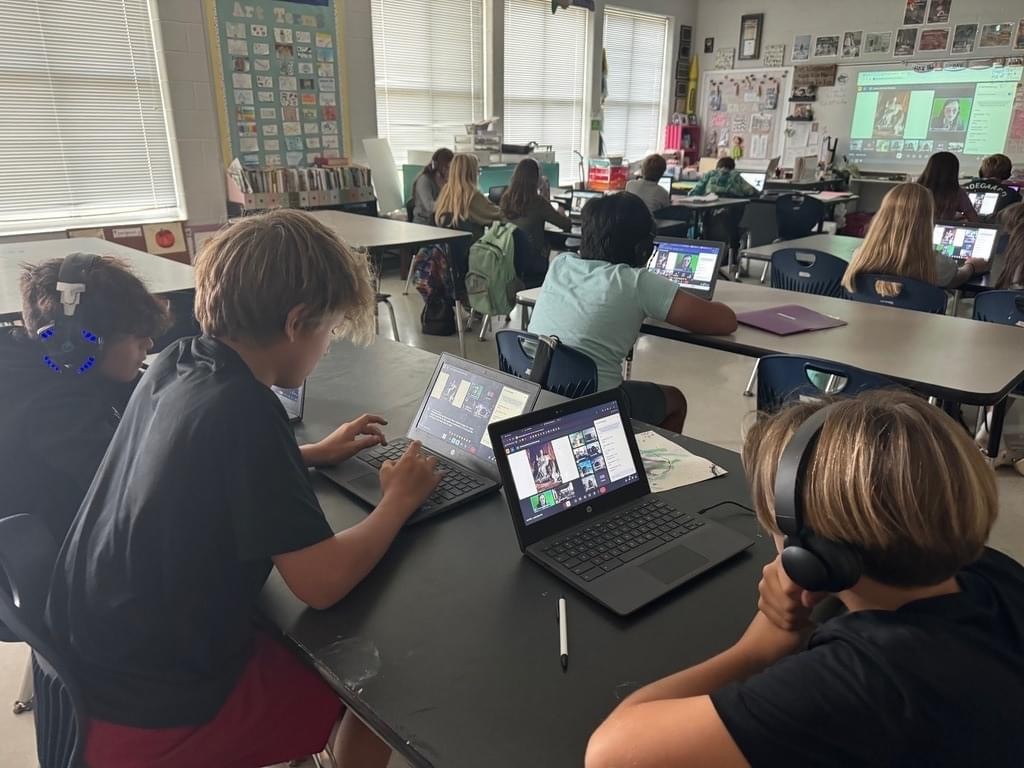
With this option, students use their own laptops to join the virtual meeting space.
Virtual Meeting Link
The Museum will provide a Zoom link for your program. If your school or system does not use Zoom (or if you already have a virtual space that your students are familiar with) your facilitator will gladly join your virtual space. Please make sure to provide the link and ensure that your facilitator is not blocked from joining with a non-school system email address.
Test Calls Available Upon Request
Please test your Audio/Visual connection before your scheduled session. If you like, we will gladly meet with you for a test call. Contact CBrown@ncartmuseum.org to schedule a test call.
What to do if your audio is not working properly
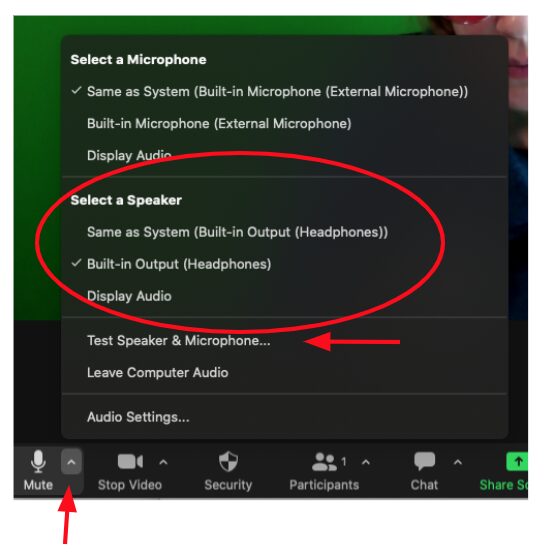
Click the caret (triangle shape) next to the microphone icon. A dropdown window will appear with a check mark next to the microphone and speaker that you are using. Try checking a different one on the list.